> For the complete documentation index, see [llms.txt](https://crossban.thelukez.com/llms.txt). Markdown versions of documentation pages are available by appending `.md` to page URLs; this page is available as [Markdown](https://crossban.thelukez.com/docs/self-hosting-a-discord-bot-on-a-vps.md).
# Self‐Hosting a Discord Bot on a VPS
This guide provides a step-by-step process to self-host the CrossBan Discord bot on a [Virtual Private Server (VPS)](#user-content-fn-1)[^1]. CrossBan is a bot for synchronizing bans across multiple Discord servers, built with TypeScript, Discord.js, and PostgreSQL. It's containerized with Docker for easy deployment.
{% hint style="info" %}
This bot is licensed under the PolyForm Noncommercial License 1.0.0.\
You may not use it for commercial purposes or to make money.\
Self-hosting is for personal or non-profit use only.
{% endhint %}
## Prerequisites
### Minimum VPS Requirements
* **OS**: Ubuntu 22.04 LTS or similar Linux distribution (recommended for Docker compatibility).
* **RAM**: At least 2GB because Docker is known for eating RAM for breakfast.
* **Storage**: 10GB+ free space (for Docker images, database, and logs). 20GB+ is better.
* **CPU**: 2 cores (sufficient for moderate usage).
{% hint style="info" %}
A server costs money - you shouldn't use free hosting solutions, because you don't get a personal IP address which can lead to problems with your bot.
Usually servers with those requirements cost around 3-5€ / month, depending on the hosting provider.
A server doesn't cost that much and I would recommend Venocix - a very reliable hosting solution from Germany.
Server suggestion
{% endhint %}
### Software Requirements
#### **Server Requirements**
* **Docker**: Version 27+ (use the newest version so you don't have to update it for a longer time)
* **Docker Compose**: Version 2.39 (same thinking as above)
* **Git**: For cloning the repository.
* **SSH Access**: To your VPS for remote management.
#### **Local Requirements**
* An SSH client like [Termius](https://termius.com/) to safely connect to your VPS and have an easy to use user interface.
#### Other Requirements
* A Discord bot token (create one at the [Discord Developer Portal](https://discord.com/developers/applications)). More to that later on.
***
## Set up the Bot
### Step 1: Prepare Your VPS
1. **Connect to Your VPS** with your SSH client.
2. **Update the System**:
```bash
sudo apt update && sudo apt upgrade
```
*Remember that you don't see the password you type in for safety reasons.*
3. **Install Docker and Docker Compose**: Please refer to the offical [Docker Docs](https://docs.docker.com/engine/install/) for the correct installation method for your OS.
4. **Install Git**:
```bash
sudo apt install git
```
5. **Verify Installations**:
```bash
docker --version
docker compose version
git --version
```
### Step 2: Clone and Set Up the Repository
1. **Clone the Repository**:
```bash
git clone https://github.com/The-LukeZ/CrossBan.git
cd CrossBan
```
2. **Create Environment File**:
* Copy the example environment file:
```bash
cp .env.example .env
```
* Edit `.env` with your details:
```bash
nano .env # opens a simple file editor
```
Fill in the placeholders.
### **Step 3: Invite the Bot to Your Servers**
1. Go to the Discord Developer Portal.
2. Disable the General **Install Link** and only allow **Guild Install**.
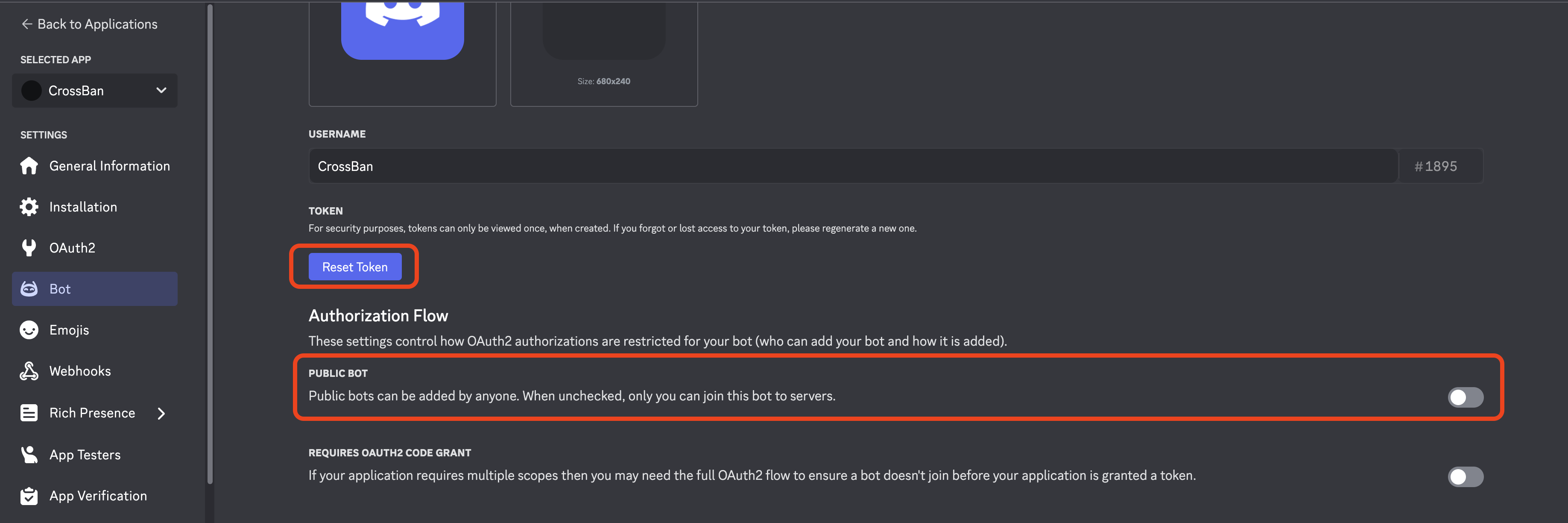
3. Go to the Bot page and disable The Public bot and Regenerate your Bot's Token.
Disable Public bot because otherwise anyone will invite your bot - you don't want that.
4. Under your bot application, go to **OAuth2** > **OAuth2 URL Generator**.
5. Select scopes: `bot`, `applications.commands`.
6. Select permissions: **Ban Members**, **View Audit Log**, **Send Messages**, **Use Slash Commands**.
7. Use the generated URL to invite the bot to your servers.
### Step 4: Configure and Run the Bot
1. **Build and Start the Bot**:
* Use the Docker Compose file:
```bash
pnpm run docker:build
```
* This builds the [Docker images](#user-content-fn-2)[^2], starts the bot and PostgreSQL database, and runs them in detached mode (so they run in the background, even when you disconnect from the server).
2. **Verify the Setup**:
* Check container status:
```bash
docker compose ps
```
* View logs:
```bash
docker compose logs -f
```
* The bot should appear online in your Discord servers. Run `/config` in Discord to configure settings.
3. **Initial Configuration in Discord**:
* Use slash commands like `/config sources-of-truth` to set trusted users.
* Configure ban sync settings per server.
### Step 4: Monitoring and Maintenance
#### Logs
* View real-time logs:
```bash
docker compose logs
```
#### Updates
* Pull the latest code:
```bash
# Go into directory where the code is located
cd CrossBan
# Pull the latest code
git pull origin main
```
* Restart:
```bash
pnpm run docker:restart
```
Developer Note
Yes, it would be better to also rebuild the image, but as long as that doesn't change, it works with just restarting the bot. Additional documentation will be added when that needs to be done.
#### Backups
* Backup the database volume:
```bash
docker compose exec postgres pg_dump -U {POSTGRES_USER} {POSTGRES_DB} > backup.sql
```
**Remember to put in the values you have in your**** ****`.env`**** ****file!**
* Store `backup.sql` securely (e.g., off-VPS).
#### Stopping the Bot
```
pnpm run docker:down
```
#### Restarting
```
pnpm run docker:restart
```
***
## Troubleshooting
#### Common Issues
* **Bot Not Starting**: Check `.env` for errors. Ensure `BOT_TOKEN` is valid and permissions are correct.
* **Database Connection Failed**: Verify `DATABASE_URL` and that PostgreSQL is running (`docker compose ps`).
* **Permissions Errors**: Ensure the bot has `Ban Members` and `View Audit Log` in all servers.
* **Container Crashes**: Use `docker compose logs` to diagnose. Common causes: invalid env vars or port conflicts. If a container is stuck in a restart-loop (containers restart themselves if they fail) stop the containers with `pnpm run docker:down` and open a Github Issue so we can resolve this together.
#### Database Issues
* If PostgreSQL fails to start, delete the volume and restart:
```bash
docker compose down -v
docker compose up -d --build
```
{% hint style="danger" %}
This deletes all data; use only if necessary.
{% endhint %}
#### Performance
* For high-traffic servers, increase VPS resources.
## Security Considerations
* **Environment Variables**: Never commit `.env` to Git (This is ensured by default with the `.gitignore` file).
* **Updates**: Keep Docker and the system updated to patch vulnerabilities.
* **Access**: Limit SSH access with key-based authentication. (For advanced users)
## Additional Resources
* [Discord.js Documentation](https://discord.js.org/docs/packages/discord.js)
* [Docker Compose Docs](https://docs.docker.com/compose/)
* [PostgreSQL Docs](https://www.postgresql.org/docs/)
* The Repository: [CrossBan on GitHub](https://github.com/The-LukeZ/CrossBan)
If you encounter issues, check the [repository's issues](https://github.com/The-LukeZ/CrossBan/issues) or logs for more details. Happy hosting!
[^1]: A "VPS" is a virtual server. A VPS is like renting an apartment in a big building. You share the physical server with others, but you get your own private space with dedicated resources, unlike shared hosting.\
It's like you get guaranteed space, electricity, and privacy, while other tenants (other VPS users) live in the same building and share the infrastructure, but your apartment is separate, so you can set it up however you like.
[^2]: A docker image is like a blueprint, for building a house.\
The built house can then be used. A built docker container is like a built house.
---
# Agent Instructions
This documentation is published with GitBook. GitBook is the documentation platform designed so that both humans and AI agents can read, navigate, and reason over technical content effectively. Learn more at gitbook.com.
## Querying This Documentation
If you need additional information that is not directly available in this page, you can query the documentation by asking a question.
Perform an HTTP GET request on the following URL with the `ask` and `goal` query parameters:
```
GET https://crossban.thelukez.com/docs/self-hosting-a-discord-bot-on-a-vps.md?ask=&goal=
```
`ask` is the immediate question: it should be specific, self-contained, and written in natural language.
`goal` is what the user is ultimately trying to achieve, the reason they need the answer. Sharing it helps GitBook give you a better, more relevant answer. A goal is most helpful when it describes the outcome the user wants rather than restating the question. For example, with `ask=how do I create an API token`, a goal like `automate deployments from our CI pipeline` lets GitBook tailor the answer to that use case.
The response will contain a direct answer to the question and relevant excerpts and sources from the documentation.
Use this mechanism when the answer is not explicitly present in the current page, you need clarification or additional context, or you want to retrieve related documentation sections.